CTA Sections
Call to action sections with checklist and cart visuals, inward tilted plan cards, frosted glass testimonial panels, floating booking icons, staggered portrait grids, overlapping customer avatars, centered contact avatars, Instagram thumbnail grids, scattered avatars, split booking bands with stars, speed promises, and closing conversion bands for React and Next.js.
Every CTA section here is included with Wensity Pro.
How to choose a CTA section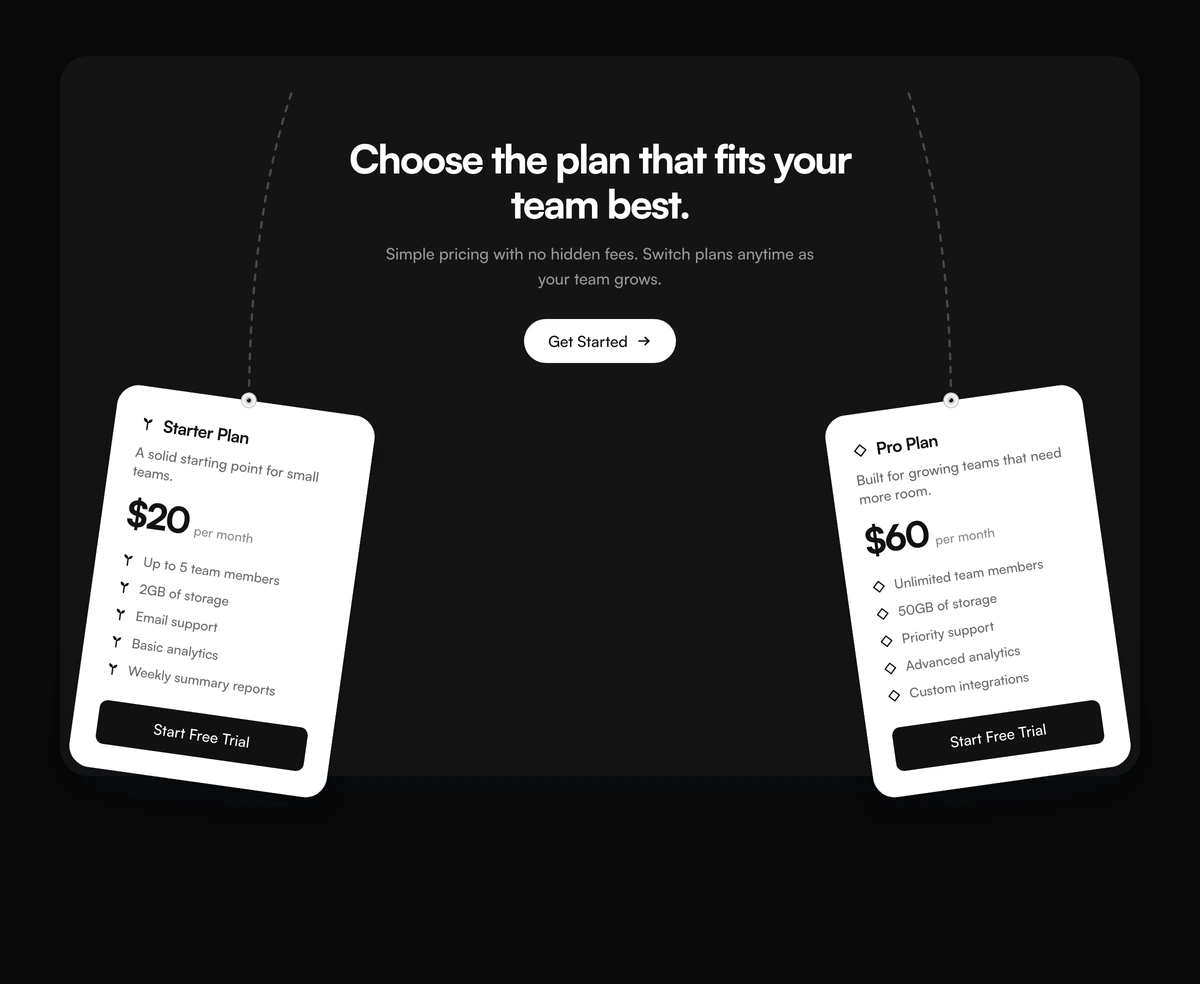





Which CTA section should I use?
Close on a seat
- CTA Section With Tilted Plan Cards
- A panel holds Get Started in the middle. Starter Plan and Pro Plan tilt in from the corners. Use it for two seats, not a price table.
Close on people
- CTA Section With Staggered Image Grid
- A split with a trial headline, Learn more and Get started, and five staggered portraits. Use it when faces close the sale, not a product shot.
Close on glass
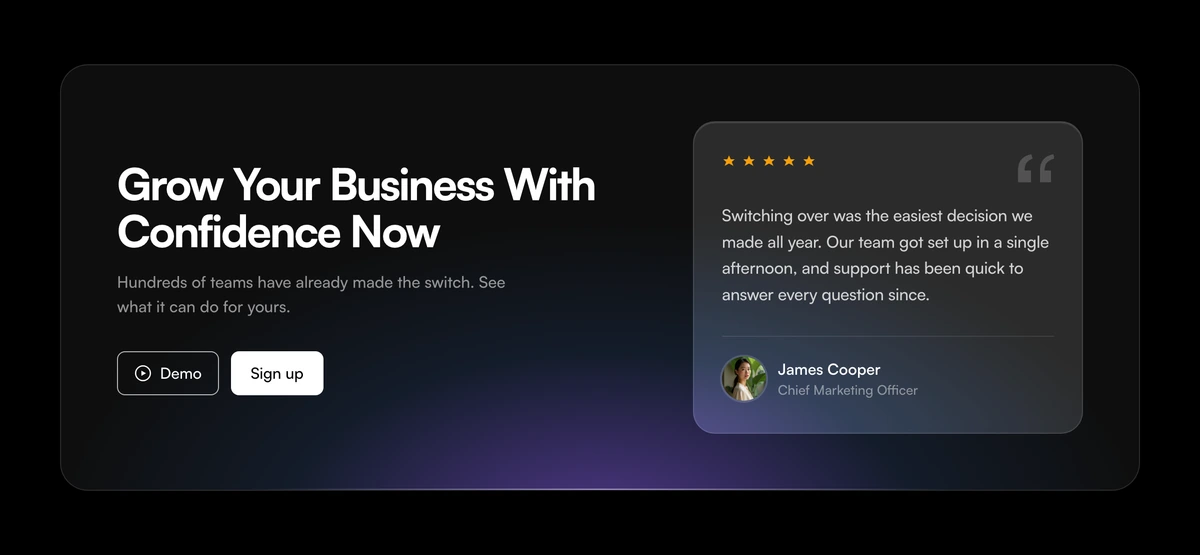
- CTA Section With Frosted Glass Testimonial Card
- A frosted panel with a violet glow, Demo and Sign up on the left, and a five star quote on the right. Use it for a product-surface close, not a two-seat price panel.
Close in a crowd
- CTA Section With Scattered Avatars
- A card with ten scattered faces, Ready to get started, and a Get Started arrow. Use it for a crowd, not a linear Instagram row.
Close on booking
- CTA Section With Floating Booking Icons
- A full-bleed band with the Rune logo, a Powered by Rune badge, and a blue Start Booking for Free button. Use it for booking, not a quote close.
Close on a feed
- CTA Section With Instagram Thumbnail Grid
- A row of rounded Instagram tiles, a creator community headline, Follow along, and X, Instagram, Pinterest, Facebook, and Bluesky marks. Use it for a public feed, not a shop count.
Close on a count
- CTA Section With Overlapping Customer Avatars
- The cropped top of a phone with four overlapping faces, a customer count, a rating row, and View lookbook plus Shop now. Use it for a catalog close, not a trial collage.
Close on the object
- CTA Section With Checklist And Cart Visual
- A timer promise, three checked benefits, and a checkout button sit beside a shopping cart drawing. Use it to close on speed, not on a form.
Close on a person
- CTA Section With Centered Contact Avatars
- A nested card with three team faces, a leftover question, and a blue Contact us button. Use it after a catalog, not as the first close.
Close on a booked call
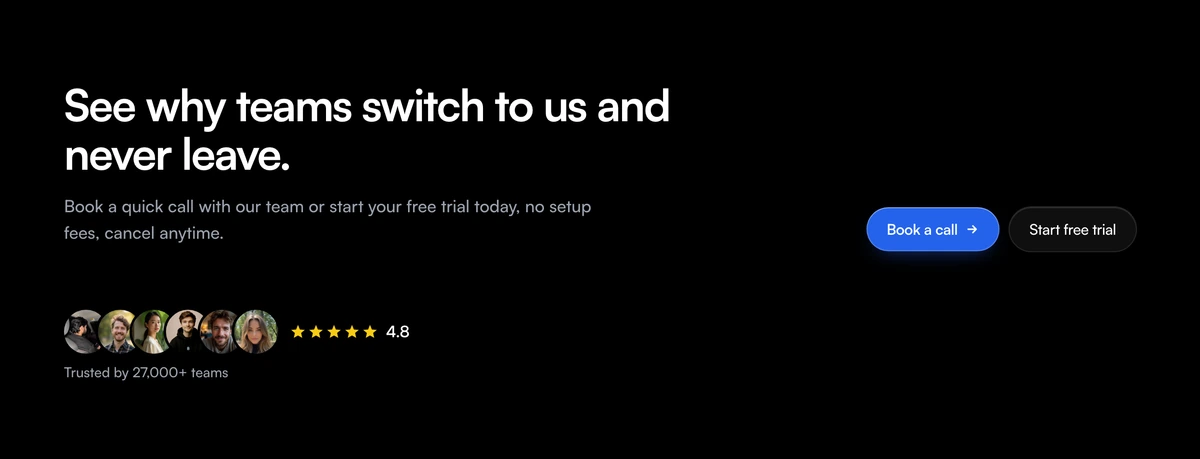
- CTA Section With Split Booking And Stars
- A left-aligned switching pitch with six circular avatars, five stars, a 4.8 score, and Book a call plus Start free trial side by side. Use it to book time, not to gather a crowd.